Delete vs. Shift + Delete on Windows: What's the Difference and How Do They Work?
📚Press Delete or Shift + Delete? Here's What Actually Happens to Your Files in Windows.

Have you ever wondered why a file deleted with Shift + Delete can sometimes still be recovered?
The answer is not as simple as the word "permanent" suggests.
When Windows deletes a file, it usually does not immediately erase the actual data stored on your drive. Instead, the operating system updates file system information, changes metadata references, and marks the occupied storage space as available for future use.
From the user's perspective, deleting a file looks simple:
Press Delete → The file goes to the Recycle Bin.
Press Shift + Delete → Windows removes the file immediately.
But behind this simple interaction, Windows performs a series of file system operations involving:
🔸File Explorer
🔸Recycle Bin management
🔸NTFS metadata
🔸Directory indexes
🔸Master File Table (MFT)
🔸Storage allocation information
Understanding these internal operations helps explain why deleted files can sometimes be recovered even after they disappear from Windows Explorer.
In this article, we will explore what really happens when you press Delete and Shift + Delete, and how Windows manages deleted data at the file system level.
📚Related: How to Recover Shift-Deleted Files without Software? Step-by-Step Guide
Part 1. The Simple Difference: Delete vs Shift + Delete
Before looking into the internal details, let's start with what Windows users normally see.
➡️ Pressing Delete
When you select a file and press Delete, Windows usually does not remove it from the storage device immediately. Instead, File Explorer moves the file into the Recycle Bin. The workflow looks like this:
Original Location
↓
Recycle Bin
↓
Restore or Empty Recycle Bin
📢 For example, before deletion:
D:\TEST Files Folder\
└── test.txt
After pressing Delete:
D:\$Recycle.BIN\
├── $R84QP9S.txt
└── $I84QP9S.txt
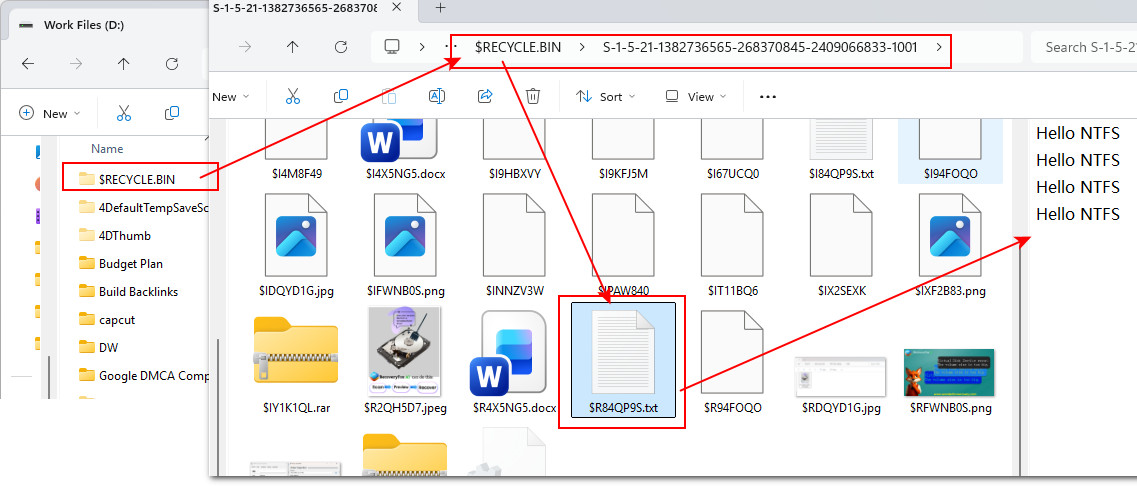
The file is no longer visible in its original folder, but Windows keeps enough information to restore it.
➡️ Pressing Shift + Delete
When you press Shift + Delete, Windows bypasses the Recycle Bin. The workflow becomes:
Original Location
↓
NTFS File System
↓
File Reference Removed
Windows Explorer no longer displays the file, and there is no built-in Restore option. However, "permanent deletion" does not mean the storage device has instantly erased every byte belonging to that file.
Instead, Windows mainly removes the references that allow normal applications to locate the file and marks the occupied space as available.
Part 2. What Happens When You Press Delete? (The Recycle Bin Layer)
The Recycle Bin is more than just a temporary folder. At the file system level, Windows creates a special storage area on each drive:
D:$Recycle.BIN\
When a file is deleted normally, Windows moves the file into this location and stores additional information required for restoration.
Inside the Recycle Bin, Windows creates two related files:
$Recycle.BIN
├── $R84QP9S.txt
│ Contains:
│ - Original file content
└── $I84QP9S.txt
├── Original file path
├── File size
└── Deletion timestamp
The two files have different purposes. The $R file contains the original content of the deleted file. The $I file stores information Windows needs to restore the file. When you choose Restore, Windows uses this information to move the $R file back to its original location.
Part 3. What Happens Inside NTFS During Normal Delete? (File System Level)
At the NTFS level, a normal Delete operation is not a true deletion. The file is still actively managed by NTFS because it remains inside the Recycle Bin.
💻 MFT (Master File Table)
The file still has an active MFT record. NTFS continues tracking:
MFT Record
├── File name
├── File size
├── Timestamps
├── Security information
└── Data location
The system still knows:
The file exists
Where the file data is stored
Which metadata belongs to it
💻 Allocation Bitmap
NTFS also maintains an allocation bitmap to track used and available storage clusters.
After a normal Delete:
Before Delete:
Cluster 100-120
[USED]
After moving to Recycle Bin:
Cluster 100-120
[USED]
The storage space is still considered occupied because Windows may need to restore the file later. In other words, Windows hasn't completely broken the link between the file name, the MFT record, and the file's physical location on the disk.
File Name→ MFT Record →File Data Location.
Although the file disappears from its original folder, the file system still maintains a complete map to the data. That's why files inside the Recycle Bin can usually be restored instantly.
Part 4. What Happens During Shift + Delete?
Unlike normal Delete, Shift + Delete bypasses the Recycle Bin completely. From the user's perspective, the file seems to disappear immediately:
User presses Shift + Delete
↓
Windows Explorer
↓
File disappears from the folder
↓
No Restore option available
However, Windows usually does not erase the file content at this moment. Instead, NTFS removes the file system references and marks the occupied space as available for future use.
Shift + Delete
↓
Remove file reference from directory index
↓
Update MFT record status
↓
Mark storage clusters as available
↓
Original data remains until overwritten
To understand why deleted files may still be recoverable, we need to look at how NTFS handles file information.
👉 Directory Index: Removing the File Reference
NTFS directories maintain indexes that link file names to their corresponding file records.
Before deletion:
Directory Index
test.txt
↓
MFT Record
↓
File Data on Disk
After Shift + Delete, NTFS removes the directory entry pointing to the file:
Directory Index
(no entry)
MFT Record
↓
File Data on Disk
Because the reference is removed, Windows Explorer can no longer locate or display the file. However, the actual data blocks may still remain on the drive.
👉 MFT (Master File Table): Marking the File Record as Available
The Master File Table (MFT) is one of the most important structures inside an NTFS volume. Each file and folder has an associated MFT record containing information such as:
MFT Record
├── File name
├── File size
├── Timestamps
├── Security information
└── Data location information
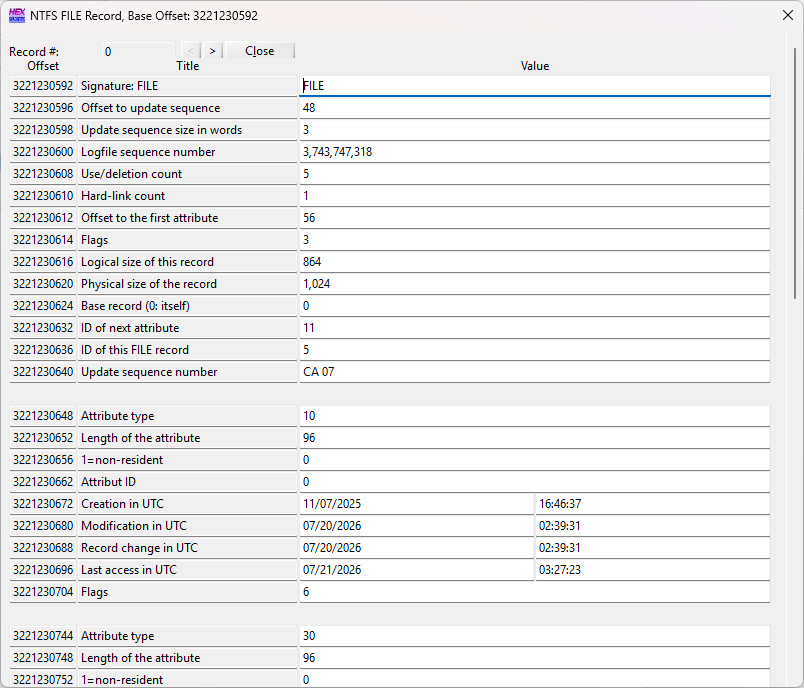
When a file is deleted, NTFS does not immediately erase the MFT record. Instead, it marks the record as available for reuse.
Besides, the metadata that links the file name to its storage location is removed, but parts of the record may remain until overwritten by new file information.
👉 Allocation Bitmap: Marking Space as Available
NTFS also maintains an allocation bitmap to track which storage clusters are currently occupied. A storage cluster is the basic unit of disk space allocation.
Before deletion:
Allocation Bitmap
Clusters:
100 101 102 103 104 105
[USED][USED][USED][USED][USED][USED]
After Shift + Delete:
Allocation Bitmap
Clusters:
100 101 102 103 104 105
[FREE][FREE][FREE][FREE][FREE][FREE]
The clusters are now marked as available for new data. However, the existing file content is not immediately overwritten. Recovery is possible until new data uses the same storage area.
Conclusion
File deletion in Windows is mainly a file system management operation, not an instant data destruction process.
When you press Delete, Windows moves the file into the Recycle Bin and keeps the information required for restoration.
When you press Shift + Delete, Windows bypasses the Recycle Bin and updates NTFS structures by removing the directory reference so that Windows Explorer can no longer locate the file, marking the MFT record as available for reuse, and marking the occupied clusters as available for future data allocation.
However, these operations do not immediately erase the original file content. The underlying data may still remain on the storage device until those storage areas are overwritten by new data.
File recovery software works by analyzing remaining file system metadata, unallocated space, and file signatures to locate and reconstruct deleted data.
Understanding these internal mechanisms also explains why recovery success depends heavily on what happens after deletion, especially whether the storage area has already been reused.
And it's not just Shift + Delete that can lead to data loss. Files can also disappear because of failed copy-and-paste operations, accidental formatting, virus attacks, RAW drives, lost partitions, or other storage-related issues.
In any data loss situation, the best practice is simple:
💡Stop using the affected storage device immediately and begin the recovery process as soon as possible.
A reliable, read-only recovery tool such as RecoveryFox AI can help recover lost files without writing new data to the device and potentially overwriting recoverable content.
You can start with a free scan and file preview to see whether your files are still recoverable.
🔗💻 Official Download Page (100% Clean & No Bundled Software)


Comments
Post a Comment